
JRebel for Cloud in Eclipse
This section lists the steps required to set up JRebel for Cloud on Eclipse. You need a working, activated JRebel installation in your IDE. Please follow the instructions on how to install and configure JRebel for Eclipse.
Important
JRebel Remoting does not support multiple developers syncing to the same module on a shared remote server. After each sync, the remote server’s code state for that module is replaced entirely by the workspace of the developer who performed the sync. Changes from any previous developers’ syncs are discarded.
Recommendation:
Assign one developer per module for remote sync. If a team owns a module, only one team member should sync it at a time.
Teams sharing a remote server across multiple modules should keep their modules backward-compatible and communicate breaking changes between module owners.
1. Enable JRebel remote server support on the server
Running JRebel on a remote server requires the JRebel agent and a launch parameter. Follow the instructions:
Download the standalone JRebel archive and extract its contents. Upload the contents to the remote server and make a note of their location.
Add
-agentpath:[/path/to/]JRebel libraryattribute to the server startup parameters. Select the correct JRebel library based on the remote server operating system and architecture (read more here). This guarantees that JRebel is started with the server.Add the
-Drebel.remoting_plugin=trueattribute to the server startup parameters.
Here is an example of a server startup script with both JRebel (Windows 64-bit) and remote server feature enabled:
-agentpath:[/path/to/]libjrebel64.dll -Drebel.remoting_plugin=true
Enabling password authentication
To enable JRebel password authentication on the server, use the -set-remote-password <NewPassword> CLI command. Doing this will require all connecting JRebel IDE plugins to be configured with the same password for successful synchronization.
Note
Use the following parameter to remove the password from the server: java -jar jrebel.jar -disable-remote-password
How do I know this works?
Once you have successfully configured JRebel remote server support for your remote server, you should see the following banner during remote server startup:
2024-04-02 14:23:55 JRebel:  #############################################################
2024-04-02 14:23:55 JRebel:
2024-04-02 14:23:55 JRebel:  JRebel Agent 2024.1.0 (202001051049)
2024-04-02 14:23:55 JRebel:  (c) Copyright 2007-2024 Perforce Software, Inc.
2024-04-02 14:23:55 JRebel:
2024-04-02 14:23:55 JRebel:  JRebel started in remote server mode.
2024-04-02 14:23:55 JRebel:
2024-04-02 14:23:55 JRebel:  #############################################################
2. Add a workspace server
Important
A JRebel Remoting sync operation targets a single remote server (JVM) at a time. There is no built-in mechanism to broadcast or fan out a single sync to multiple JVMs simultaneously.
Recommendation (for clustered or Kubernetes environments):
Configure one remote server entry per JVM (pod) in your IDE plugin. Each entry should point to a stable, dedicated endpoint. For example, one Kubernetes Service per pod, with a fixed hostname and port.
These entries can be configured at the workspace level. No project- or module-level configuration is required, unless you need to control which modules sync to which servers.
When Synchronize on build is enabled, each build will sync to all configured remote servers, effectively achieving fan-out.
Do not rely on a TCP load balancer to distribute sync requests across backend JVMs. A load balancer will route each sync to only one backend instance, meaning the other instances will not receive the update. Direct, pinned connectivity to each JVM is required.
Important
JRebel Remoting requires direct, pinned connectivity to each target JVM.
Placing a TCP load balancer between the IDE and your backend JVMs is not supported, regardless of whether sticky sessions or session affinity are enabled. A load balancer will route each sync request to only one backend instance. The other instances behind the LB will not receive the code update. There is no mechanism for a standard load balancer to propagate sync requests to all backend instances and merge their responses.
Recommendation (for clustered or Kubernetes environments):
Create one stable endpoint per JVM. For example, one Kubernetes Service per pod (managed server), each with a fixed hostname and port.
Configure each endpoint as a separate, remote server entry in the IDE plugin.
Do not point the IDE at a cluster-level or load-balanced endpoint.
Open Help > JRebel > Configuration. Select the Remote servers tab. You will be presented with the following view:
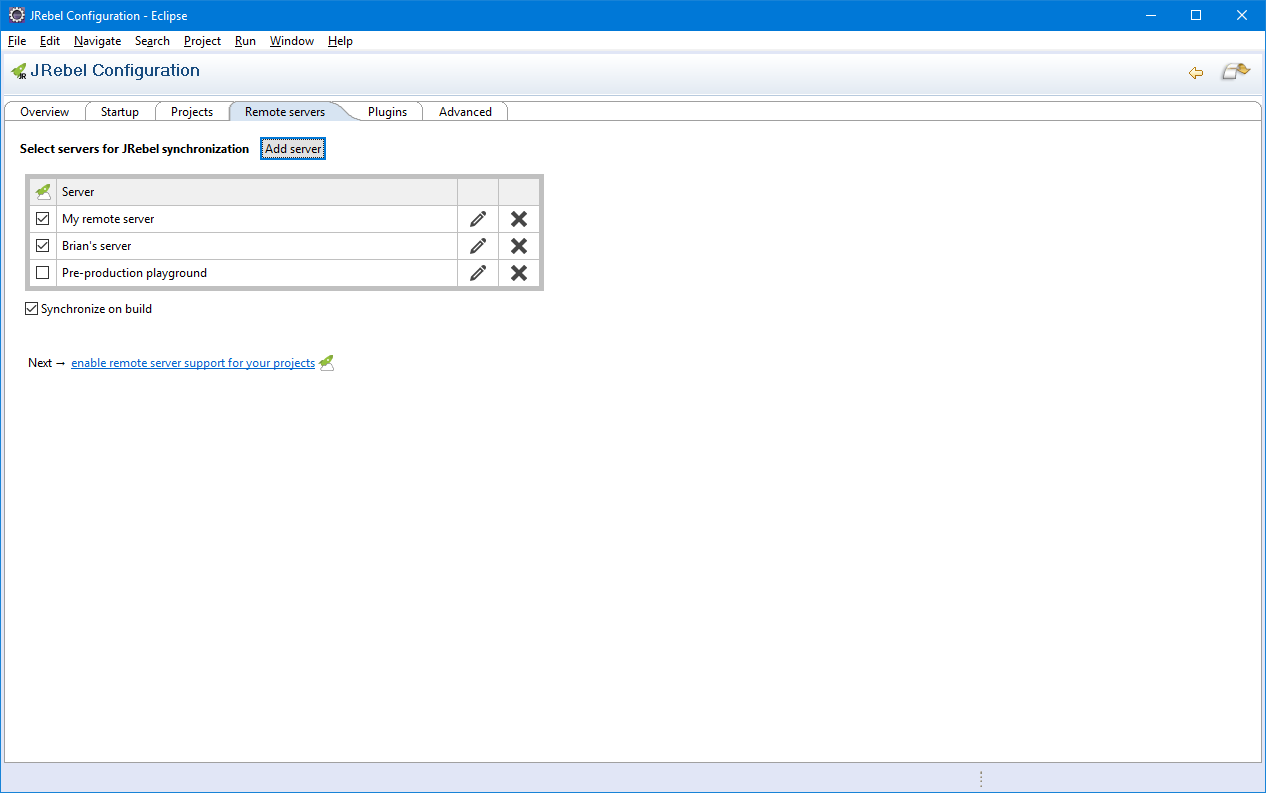
Press Add server. The following dialog will open:
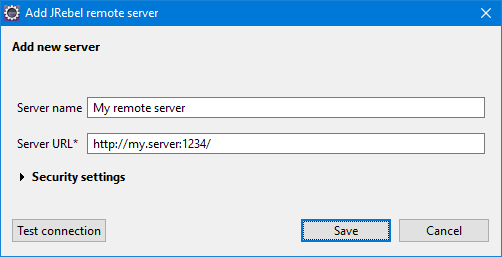
Provide the remote server information:
Server name – Provide a name for the remote server.
Server URL – Provide the full URL for the server.
You can expand the Security settings section to enforce stricter server security:
Server authentication – Enable additional synchronization security. Specify a simple alphanumeric password. The password also needs to be set on the server:
java -jar jrebel.jar -set-remote-password <NewPassword>.HTTP Basic authentication – Enable HTTP authentication when your remote server requires it.
Tip
Press Test connection to immediately test the server URL. This test will ping the server for JRebel, verifying its presence and correct version.
Press Save to store the new remote server.
This server can now be used by all projects in your workspace. Any new servers added from this view are automatically enabled for workspace synchronization. To disable a workspace server, deselect the checkbox in front of the server name.
3. Configure projects for remote server support
Open Help > JRebel > Configuration. Select the Projects tab. The following table will open:
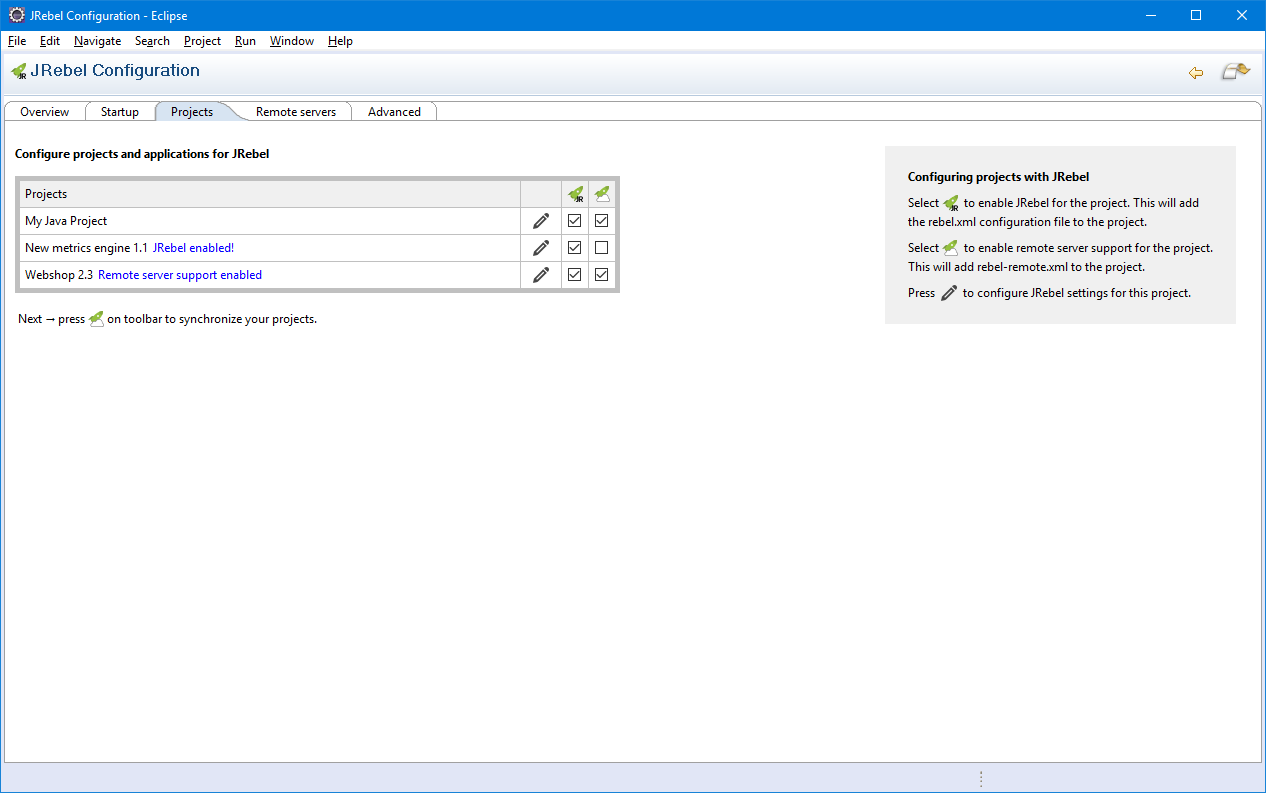
Select the
 checkbox for your project.
Note
The configuration file
rebel-remote.xmlis created in the project resources folder.Build and redeploy your application containing the
rebel-remote.xmlconfiguration file to the remote server.You are set!
Tip
By default, all configured projects inherit the workspace server settings.
To configure your workspace projects for a customized remote server setup, press the pencil icon next to the project name. The project properties window is opened for remote servers. The following options are available:
Off – No remote server synchronization functionality is applied to the project.
Use all active workspace servers – Once remote servers have been defined and enabled via Help > JRebel > Configuration > Remote servers, all of them will be used for synchronization of this project. This option provides a simpler configuration when working with just one remote server or when the project is deployed to all remote servers. You can use the global Remote servers view to enable/disable servers for all projects configured with this option.
Select specific workspace servers for this project – Select or deselect remote servers in the table to enable them for the project. This project will be synchronized only with the selected servers. Note that enabling or disabling remote servers in the global Remote servers view has no effect on projects using this configuration.
4. Synchronize with the server
Use the  synchronization button on the toolbar to manually synchronize all configured projects between your workstation and server. To synchronize a single project, open the drop-down menu next to the button and select the desired project.
You can also right-click the desired project node in the Project Explorer and select JRebel > Synchronize from the context menu to synchronize. Your synchronization status is displayed in the console log.